A free Chinese widget for everyday vocabulary
VocabPin is 100% free, with no subscription, in-app purchase, paywall, or account required. Choose Chinese as your learning language and a language you understand for the translation.
A Lock Screen or Home Screen widget makes a word visible between study sessions. The widget is a reminder and practice prompt; it does not replace listening, reading, speaking, or a course.
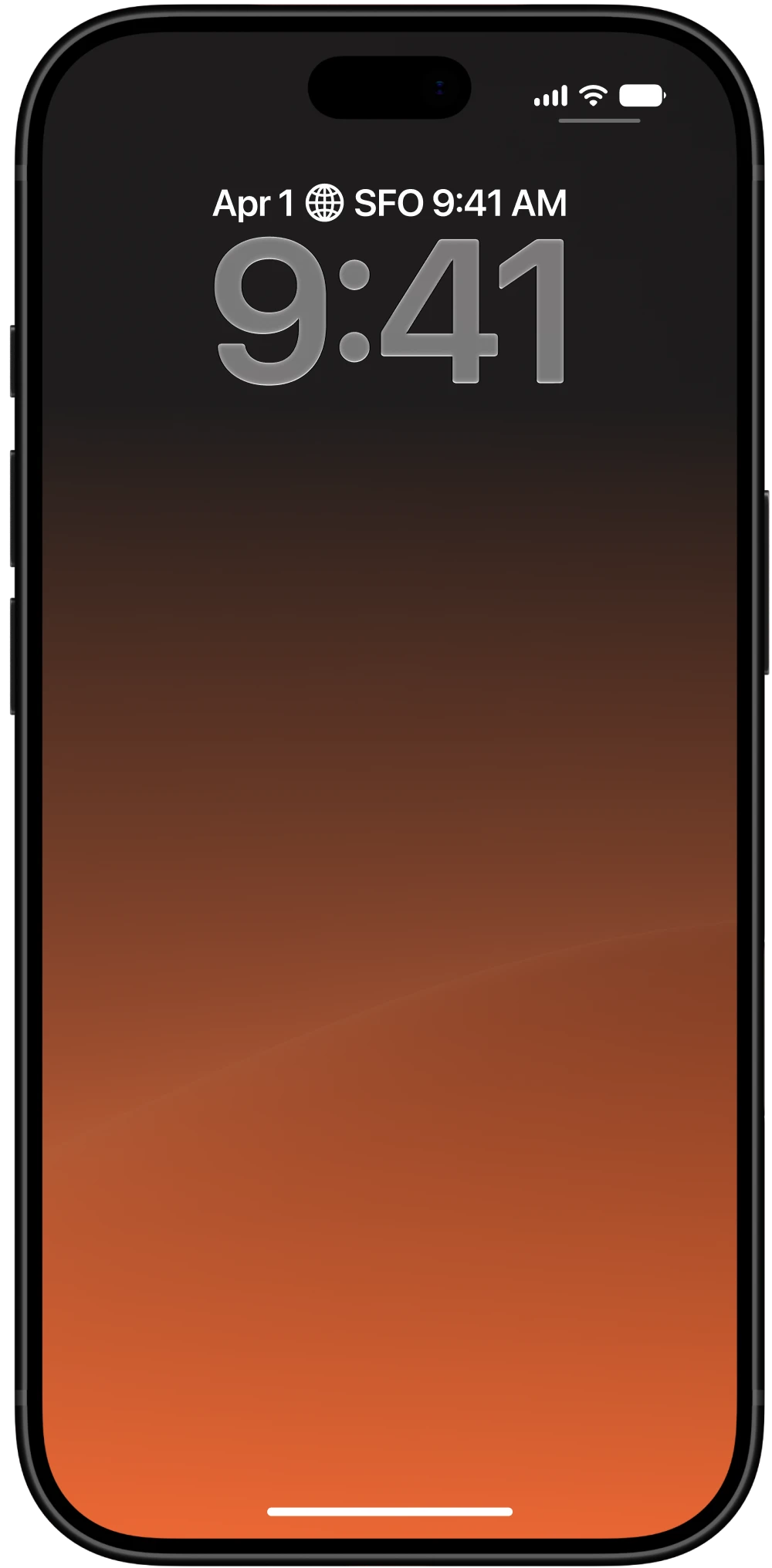
Add Chinese to your iPhone screen
Install VocabPin from the App Store and open the app. Choose your learning and translation languages and configure your vocabulary preferences.
To add a Lock Screen widget, touch and hold the iPhone Lock Screen, tap Customize, select the Lock Screen and its widget area, then find VocabPin and choose a layout. Save your changes. For a Home Screen widget, touch and hold the Home Screen, use the add-widget control, and select VocabPin. The controls can differ by iOS version.
Practice Chinese characters, pinyin, and tone marks
A few useful examples to start with: 你好 (nǐ hǎo): hello; 谢谢 (xiè xie): thank you; 朋友 (péng you): friend. These are illustrative learning examples; the words shown by your widget depend on your selected language pair and vocabulary settings.
Look at the characters first, then say the pinyin with its tone marks. Listen carefully: a written tone mark is a guide, while real pronunciation needs listening practice.
Turn a glance into a study routine
When a word appears, try to remember its meaning before checking the translation. Say it aloud, then use the app's pronunciation audio when available. Return to words that need more attention during a dedicated review.
Look for the same word in a short video, conversation, or reading passage. A familiar word can have several meanings, so check how it is used in context rather than relying on one translation.
Choose the right widget and settings
A Lock Screen widget offers a quick prompt when you check your phone; a Home Screen widget has space for a larger display. Try both and choose a language pair that suits your current study.
iOS controls widget refresh timing, so a new word is not guaranteed on every unlock. If a widget does not appear or update as expected, open VocabPin, check its language and widget settings, and return to your screen.
Is the Chinese widget really free?
Yes. VocabPin is 100% free: there is no paid subscription, in-app purchase, paywall, or account requirement. You can use the Chinese vocabulary widget without entering payment details.
Start with a small, sustainable routine. A few active recall attempts supported by listening and real context are more useful than expecting a widget to teach the language on its own.