Học ngoại ngữ ngay trên màn hình khóa iPhone.
Biến hơn 80 lần mở khóa điện thoại mỗi ngày thành cơ hội ghi nhớ từ vựng tự nhiên.
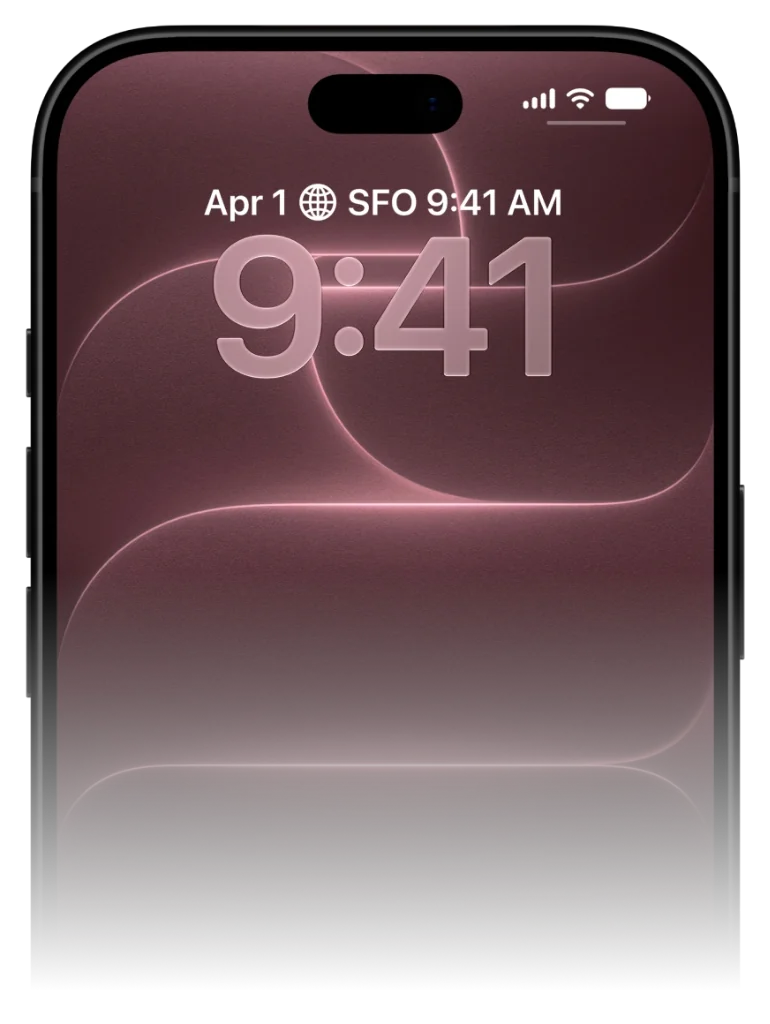
Không cần gồng mình mở ứng dụng học mỗi ngày. VocabPin hiển thị các từ vựng chọn lọc trực tiếp trên màn hình khóa có hỗ trợ Always-On của iPhone.
Cách VocabPin hoạt động.
Không cần ép học 30 phút mỗi ngày. Không lo đứt chuỗi ngày học. Từ vựng xuất hiện tự nhiên ngay nơi ánh mắt bạn thường hướng đến.
Chọn cặp ngôn ngữ và trình độ
Học linh hoạt giữa 17 ngôn ngữ theo hai chiều. Chọn đúng trình độ CEFR từ người mới bắt đầu A1 đến B2/C1, JLPT hoặc HSK.
Phát âm bản xứ chân thực
Âm thanh 24kHz thu âm tại phòng thu bởi người bản xứ thực thụ. Chạm vào từ để nghe ngữ điệu và phát âm chuẩn xác.
Ghim lên màn hình và học qua từng cái nhìn
Đặt tiện ích tinh tế trên màn hình khóa hoặc màn hình chính. Mở khóa hơn 80 lần mỗi ngày để củng cố trí nhớ dài hạn mà không hề tốn sức.
Chọn cặp ngôn ngữ và trình độ
Học linh hoạt giữa 17 ngôn ngữ theo hai chiều. Chọn đúng trình độ CEFR từ người mới bắt đầu A1 đến B2/C1, JLPT hoặc HSK.
The science of Lock Screen micro-retrieval
How ambient environmental cues stimulate cognitive priming.
Cognitive psychology identifies 'priming' as a phenomenon where subtle exposure to a stimulus influences subsequent retrieval without conscious effort.
When foreign vocabulary is pinned below your Lock Screen clock, your brain registers the word shape, spelling, and translation dozens of times each day.
By the time you encounter the word in conversation or reading, it already feels familiar and easily accessible.
Step-by-step: Setting up your Lock Screen widget in 30 seconds
Simple iOS configuration for instant daily practice.
1. Touch and hold your iPhone Lock Screen until the 'Customize' button appears.
2. Tap 'Customize', then select your Lock Screen.
3. Tap the rectangular widget box directly below the time clock.
4. Scroll down your widget list, select VocabPin, and choose the 'Accessory Rectangular' widget.
5. Tap 'Done' in the upper right. Your Lock Screen is now your personal vocabulary companion.
Thiết lập trên iPhone trong chưa đầy 30 giây
Hoạt động mượt mà từ iOS 17 đến iOS 27 mà không cần cấu hình phức tạp.
Nhấn giữ màn hình
Chạm và giữ Màn hình khóa hoặc Màn hình chính cho đến khi nút 'Tùy chỉnh' xuất hiện.
Chọn VocabPin
Chạm vào khung tiện ích dưới đồng hồ hoặc nút '+' ở góc trên, sau đó chọn VocabPin.
Chọn ngôn ngữ & cấp độ
Chọn ngôn ngữ mục tiêu và chu kỳ làm mới, rồi nhấn 'Xong'.
Các ngôn ngữ được hỗ trợ
Mỗi ngôn ngữ đều có phông chữ chuẩn Apple, phát âm bản xứ và cấp độ CEFR/JLPT/HSK.
Câu hỏi thường gặp
Hướng dẫn chuyên sâu & khoa học
Hướng dẫn toàn diện: Học từ vựng trên màn hình khóa iPhone
Từng bước thiết lập widget, phiên âm và màn hình luôn bật để học từ vựng thụ động mỗi ngày.
How Often Do iPhone Widgets Update? iOS Timeline Explained
Ever wondered why some iOS widgets freeze while others update smoothly? Dive into Apple's WidgetKit architecture, timeline budgets, and how VocabPin ensures reliable offline rotation.
Cách học từ vựng thụ động: Khoa học về sự tiếp xúc tự nhiên
Tâm lý học nhận thức đằng sau việc học thụ động: Tại sao 80 lần nhìn lướt qua màn hình lại hiệu quả hơn 30 phút nhồi nhét từ vựng.