เรียนรู้คำศัพท์ภาษาต่างประเทศบนหน้าจอล็อคของคุณ.
เปลี่ยนการปลดล็อคหน้าจอมากกว่า 80 ครั้งต่อวันให้เป็นการซึมซับคำศัพท์โดยไม่รู้ตัว.
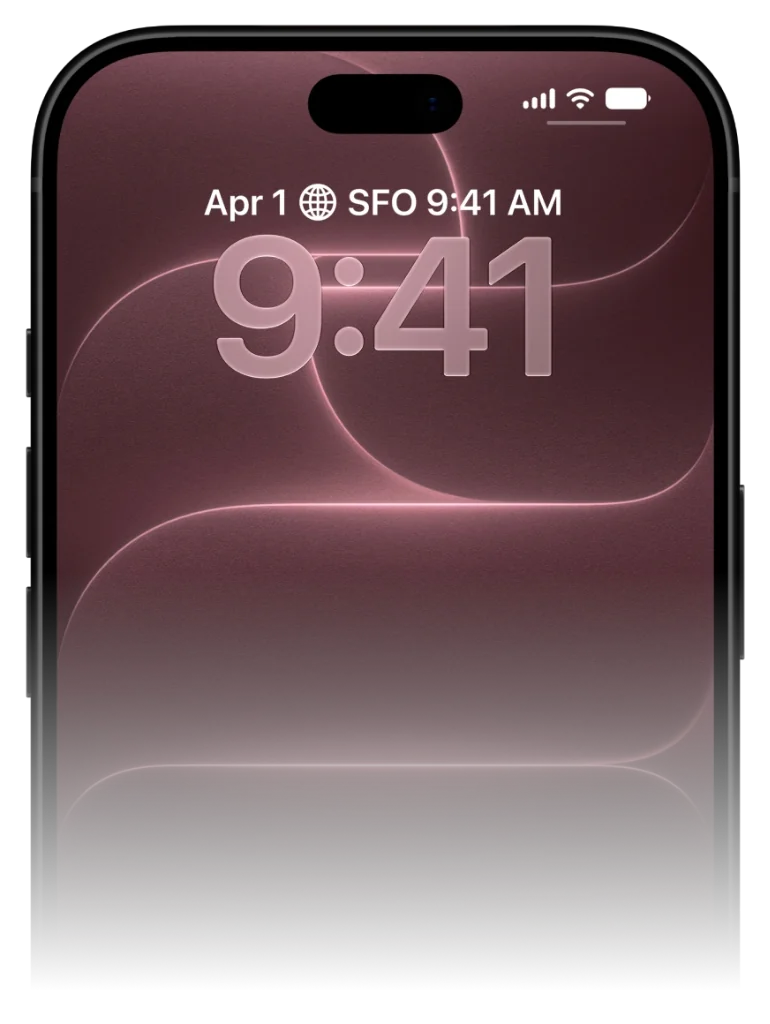
ไม่ต้องฝืนใจเปิดแอพท่องศัพท์ทุกวัน VocabPin วางคำศัพท์ที่คัดสรรมาอย่างดีไว้บนหน้าจอล็อค iPhone พร้อมรองรับ Always-On Display.
VocabPin ทำงานอย่างไร.
ไม่ต้องฝืนท่องจำวันละ 30 นาที ไม่ต้องกังวลเรื่องสตรีคขาด คำศัพท์จะปรากฏขึ้นอย่างเป็นธรรมชาติในจุดที่สายตาคุณมองอยู่แล้ว
เลือกคู่ภาษาและระดับความยาก
เรียนรู้ข้ามไปมาระหว่าง 17 ภาษาได้อย่างอิสระ เลือกระดับตามมาตรฐาน CEFR ตั้งแต่เริ่มต้น A1 ถึงระดับ B2/C1, JLPT หรือ HSK
เสียงอ่านแท้จากเจ้าของภาษา
เสียงบันทึกสตูดิโอความละเอียด 24kHz โดยเจ้าของภาษาตัวจริง แตะที่คำเพื่อฟังการออกเสียงและวรรณยุกต์ที่ถูกต้อง
ปักหมุดบนหน้าจอและเรียนรู้ผ่านการมอง
วางวิดเจ็ตเรียบหรูบนหน้าจอล็อคหรือหน้าจอโฮม การปลดล็อคโทรศัพท์กว่า 80 ครั้งต่อวันจะช่วยตอกย้ำความจำระยะยาวโดยอัตโนมัติ
เลือกคู่ภาษาและระดับความยาก
เรียนรู้ข้ามไปมาระหว่าง 17 ภาษาได้อย่างอิสระ เลือกระดับตามมาตรฐาน CEFR ตั้งแต่เริ่มต้น A1 ถึงระดับ B2/C1, JLPT หรือ HSK
The science of Lock Screen micro-retrieval
How ambient environmental cues stimulate cognitive priming.
Cognitive psychology identifies 'priming' as a phenomenon where subtle exposure to a stimulus influences subsequent retrieval without conscious effort.
When foreign vocabulary is pinned below your Lock Screen clock, your brain registers the word shape, spelling, and translation dozens of times each day.
By the time you encounter the word in conversation or reading, it already feels familiar and easily accessible.
Step-by-step: Setting up your Lock Screen widget in 30 seconds
Simple iOS configuration for instant daily practice.
1. Touch and hold your iPhone Lock Screen until the 'Customize' button appears.
2. Tap 'Customize', then select your Lock Screen.
3. Tap the rectangular widget box directly below the time clock.
4. Scroll down your widget list, select VocabPin, and choose the 'Accessory Rectangular' widget.
5. Tap 'Done' in the upper right. Your Lock Screen is now your personal vocabulary companion.
ตั้งค่าบน iPhone เสร็จภายใน 30 วินาที
ทำงานแบบเนทีฟตั้งแต่ iOS 17 ถึง iOS 27 โดยไม่ต้องตั้งค่าซับซ้อน
แตะหน้าจอค้างไว้
แตะหน้าจอล็อกหรือหน้าจอโฮมค้างไว้จนกว่าปุ่ม 'ปรับแต่ง' จะปรากฏขึ้น
เลือก VocabPin
แตะช่องวิดเจ็ตใต้นาฬิกาหรือปุ่ม '+' ที่มุมบน แล้วค้นหา VocabPin
เลือกภาษาและระดับ
เลือกภาษาเป้าหมายและความถี่ในการเปลี่ยนคำศัพท์ แล้วแตะ 'เสร็จสิ้น'
ภาษาที่รองรับสำหรับวิดเจ็ตนี้
ทุกภาษามาพร้อมฟอนต์มาตรฐาน Apple เสียงอ่านเจ้าของภาษา และระดับ CEFR/JLPT/HSK
คำถามที่พบบ่อย
คู่มือเชิงลึกและวิทยาศาสตร์การเรียนรู้
คู่มือฉบับสมบูรณ์: ฝึกคำศัพท์บนหน้าจอล็อค iPhone ของคุณ
ขั้นตอนง่ายๆ ในการตั้งค่าวิดเจ็ต คำอ่านสัทอักษร และจอภาพแบบเปิดตลอดเพื่อการจำศัพท์แบบไร้กังวล.
How Often Do iPhone Widgets Update? iOS Timeline Explained
Ever wondered why some iOS widgets freeze while others update smoothly? Dive into Apple's WidgetKit architecture, timeline budgets, and how VocabPin ensures reliable offline rotation.
วิธีจำคำศัพท์แบบซึมซับ: วิทยาศาสตร์เบื้องหลังการเห็นคำศัพท์ซ้ำๆ
จิตวิทยาการรู้คิดเบื้องหลังการเรียนรู้แบบซึมซับ: ทำไมการชำเลืองมอง 80 ครั้งต่อวันจึงได้ผลดีกว่าการนั่งท่องคำศัพท์ 30 นาที.